I finally added a blog button to this blog and I want to teach you how add one to your blog, too!
Here is my blog button! Feel free to put it on your blog and share the LOVE!! :)

STEP 1:
To make your own button, open Power Point, click on Design, and then Page Setup.

I would suggest making a button that is 160px X 160px
which is 2.22in X 2.22in or 5.64cm X 5.64cm
On the Page Setup screen, change the slide to the following dimensions.

Then make a blog button using different shapes, colors, patterns and clipart to match your blog. Click {here} to check out some great clipart and font resources. Make your button original and unique to your blog... don't be tempted to copy someone else's design or style.

After you have made you blog button, select all the different shapes and text boxes. To do this, hold down SHIFT and click on each shape. When everything is selected, continue to hold down SHIFT and right click on your button. Select "Save as Picture..."

Be sure to save it as a PNG: Portable Network Graphics Format.
{BTW: This step makes it so you don't have an unwanted, white box surrounding your image.}

-------------------------------------------------------------
STEP 2:
Next, you need to sign up for Photobucket, and don't worry, it's free. Click {here} to sign up.
After you sign up and you are signed into your account, click on the green Upload button.

Then, click on the green button that says Select Photos and Videos and find your blog button.
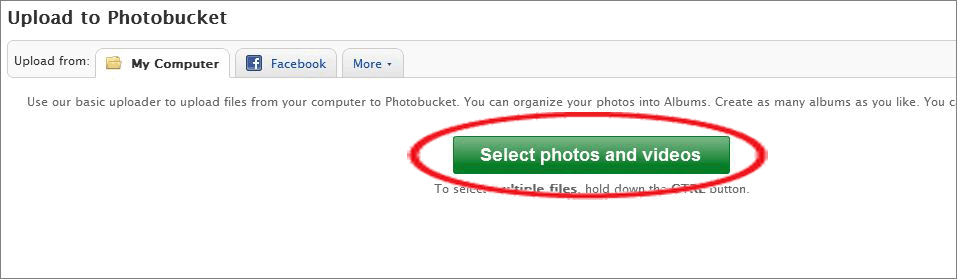
When the upload is complete click on View Album.

Next, click directly on your blog button.

On the next page, you will see this box on the right side.
Remember this, because you will need the Direct Link in Step 3.

-------------------------------------------------------------
STEP 3:
Open up a new window and go to your blog address. Make sure you are logged into your blogger account and click on design {it is in the upper right-hand corner}.

Then, click on Layout.

Next, click on Add a Gadget.

Add the HTML/JavaScript gadget.

Copy and past the following code into the Content part of the HTML/JavaScript gadget. Make sure to put your own blog address where it says, "PUT YOUR OWN BLOG ADDRESS HERE," and the direct link where it says "PUT THE DIRECT LINK TO YOUR BUTTON HERE." {BTW: The direct link can be found in step 2.} When you have added the correct code, click on Save.

This is the HTML code you need:



141 comments:
great tutorial!! Thank you
Such a great post!!!!!!
Michelle
I have done this before, but always forget how. I am going to bookmark this for future reference. Thank you so much.
You are an amazing resource for new bloggers. :)
Thanks for the awesome post. I did it but my button is huge. I set it to 2.22 in X 2.22 in. like you said. I can't figure out what I did wrong. Any suggestion? LOL
-Jeremy
Mr. Michelbook's Classroom
Nevermind. It fixed itself. I have no idea what was up with it. LOL. Thanks again for the great tip. I love my new button!
-Jeremy
Mr. Michelbook's Classroom
Thanks Lindsey-2 for 2! Your tutorials are so easy to follow. I added an arrow to the top last week, and now a blog button. :)
I was not successful with a different blog button tutorial but yours worked first time!
Patti
primary practice
Thanks for this, I have done it before but had forgotten how I did it and I want to change my current button. So now I have a project to add to this week! Thanks for all your hard work on these tutorials.
Tania
Mrs Poultney's Ponderings
You rock Lindsey. :)
M
Ms.M's Blog
A Teacher's Plan
I got it all to work except it's too big when it shows up on my blog! What can I do?
Ms. Cranfill's Class
I am having the same problem...it is too big. HELP!
Marybeth
gcialini@comcast.net
Cialini Chat
When creating your button, try setting the pixels at 125 by 125. That's what I did when I created mine and it's a good size.
Hope that helps. :)
Antoinette
Can I please tell you how EXCITED I am that you've created this site?! What a blessing this will be to many! Wow, you taught yourself HTML?! That's pretty much amazing! Keep up the great work!
You are amazing! Keep 'em coming! I'd love to know how to create a header... and change the background... and create a signature... and well... everything else!! :)
I love your tutorials!!! I was wondering if you could do one on how to put both landscape and portrait layouts in the same Powerpoint presentation...I've been looking and can't find a good one...I love the pictures you use to explain...I'm a visual learner...hehe...Thought it might help other teachers too who are making items for their TpT store:) Keep up the great work!!!
thanks for sharing this, I had someone make my button for my blog--but I also have a blog for my students and I wanted to make one for that. Now I know how. great advice.
by the way, i'm having a REally Good stuff giveaway.
stop by and check it out.
Jessica
Your tutorials and posts are fantastic!! I have worked through almost all of them. They are so easy to follow & helpful. Thank you!!
Jessica
Apples and Papers
hi, thank you for a great tutorial, I just have one question - the HTML code we should copy, but then put our own blog address and button info - you have at the bottom<img alt = "the teacher Wife"src = .... - should we put the name of our blog here??
thank you
Thank you so much for the tutorial! I just started my blog recently and I love following this one! I know you are super busy so thank you for helping us newbies!
-Sharon
The Tennessee Teacher
I'm an education student and would love some encouraging followers to come visit me!
Great blog! I'm new to blogging so this info is SO helpful!
Gina
Beach Sand and Lesson Plans
This is fabulous!!! I love your site! Everyone should follow you :)
Rae
Thank you! That was really helpful. :)
Miss. Whimsy's
I love your blog and reading all of your posts! As a very new blogger, it is so incredibly helpful! I am a new follower and would love you to follow me back :)
http://liveitloveitlearnit.blogspot.com/
Elizabeth
Thank you SO much. I am so glad that I stumbled on this site. I am new to the TpT and blogging world and not the most tech savvy, so this is amazing!
Kasey
Not a teacher, but I used your tutorial and it worked great!!! Shared the link so others can be as smart as you! Thanks a ton!
I am a new blogger and TPT Seller and I want to thank you for your editorials. This whole process is exciting but can be so overwhelming and it nice to have a resource like this to help. Thank you so much for your willingness to share and for the time it takes.
Pauline
First Grade by the Sea
Thank you so much for sharing so generously of your knowledge.
Thank you SO much for the tutorial! Everything is working except when you click on my button it takes you to my blog to a page that doesn't exist. Basically the problem is that it is typing in my blog address twice. Do you know what I could be doing wrong? So confused!
I've nominated you for the Liebster Award! Basically it is just a way for new bloggers to connect with new bloggers and I thought it might help with getting your blog even more out there! Check out my blog for the details! :) P.S. I LOVE this! Thank you. :-)
Thank you so much! I was overwhelmed at the thought of creating a button to grab, but your directions were so clear and helpful that I got it up and running much quicker than I ever would have expected. I love your blog! In case you like to see what you help people create, here's a link to my blog with my new button: http://commoncoreconnectionusa.blogspot.com/
Thank you Lindsey... I'm a bit slow with this technology stuff but your directions were super easy!!!
Thanks
Lory
Thank you so much for this tutorial! I tried several others before I found yours. Your directions were easy to follow, and so helpful!
Thank you for such a perfectly clear tutorial! I just designed a button for my blog thanks to you :)
Abby
Schoolhouse Talk!
Ok, I finally figured out how to make my image show, but when I followed all of these steps, all it did was post the button. It didn't have the little box underneath with what they need to copy and paste onto their own blogs...
Your tutorials are the best. You make everything SO easy. Thanks for the awesome visuals!
Meghan
First Grade Hugs and High Fives
Very clear instructions, made adding my button super easy!
Mine is gigantic :/
This whole blog is so helpful! Thank you so much for creating this!
I also got the button to show but none of the code underneath. What did i do wrong? Thanks for your help.
Showing the button but not the code underneath is exactly the issue I had as well. I noticed that the three of us that had this as an issue all posted after April 2013. Blogger just revamped their site and I wonder if the code is now incorrect??? I have no clue what to do about it.
I'm having the same problem with the code not showing up.
How do you do a button WITHOUT the grab box as you have also done so?
ty x
Hi! Thank you so much for this tutorial. I just completed and love my button, but the HTML box below the button is not showing anything? Any help? Thanks! Smeadows321@gmail.com
The html for the person who wants to take it and put my button on their blog isnt showing up.. It just has a blank box without any text in it.. am I doing something wrong? http://justjessamy.blogspot.com
Great post!! Searched google over and over. This post is perfect to start making a blog button.
website design
Thank you SO MUCH for this tutorial! I finally figured out how to make the button and post on my blog, thanks to you.
website design
Thanks to you for posting this post. This post is very useful for learner.
Erbil Companies
This site has been very useful to us to stay up to date with our training. We would definitely recommend you as one of the
top informative news blogs for big data! Keep up the great work & Thanks! -
Hadoop training
THANK YOU SO MUCH, YOU HAVE MADE IT SUPER EASY :)
I keep missing something. My text field keeps coming up blank.
Thanks for the help! I love your blog! It's so colorful and creative. I am trying my best to create my own. I would have never thought I would be in the position to have to create a blog. Hopefully with a little help I can get my blog to look just as colorful as yours!
So everything turned out for me but the text box below the button isn't showing the "copy and paste" html code... ideas?
Never mind I have it figured out!
It¡¦s actually a great and helpful piece of info. I am satisfied that you just shared this helpful information with us. Please stay us up to date like this. Thank you for sharing.
website design
Hey you can also earn by google adsense get great guidance hear
http://www.way2onlinejobs.com/income/google-adsense-videos.html
Thank you for sharing excellent informations. Your web-site is very cool. I’m impressed by the details that you have on this site seo consulting
Thank you for all your efforts that you have put in this. Very interesting info. Tracking system
Make your button original and unique to your blog... don't be tempted to copy someone else's design or style.seo urdu video tutorials
In this tutorial, you will learn how to make a blog button in Power Point {although you can make a button in any design program urdu tutorials
I think I followed all the instructions but this is what Im getting. Lol it works but not right.
http://harpsromancebookreview.com
It says sorry this person moved or deleted this image (I didn't??) and shows a box with code below it?
Can you help please?
Awesome!!! It totally worked. I have been trying to figure this out for weeks. Only issue I am having is that the empty box under my button I assume is for my code others will use, however it is not showing up in the box. Please help!!
I think your blog ROCKS! Your information is helpful and I can't wait to finally get a button up on my blog. I've nominated your blog for the Liebster Award! You can check out the details on my blog: http://rvclassroom.blogspot.com/2014/04/liebster-award-nominee.html
A great website among remarkable moreover sole apparatus what otherwise would you demand.
make money online
Thanks for sharing this!! Going to share this site with some of my blogging friends :) Great tutorials and easy to follow!
Rachael @ http://www.parentingandhomeschoolinginfaith.com
OMG it worked and looks so good. Thank you so much for sharing this information.
OMG it worked and looks so good. Thank you so much for sharing this information.
Thanks for the tutorial! My button appears, but there is no code underneath it, just a blank box! Any suggestions on how to fix that? Thanks!
Gina
misspelusoskindergarten.blogspot.com
Yes, I'm also getting a blank white box below the button. At first I thought it was something having to do with me being logged on blogger. But I looked at the blog from a different website and the white box is still there.
Same as the comments above me....My button is there with the HTML / JAVA box below it, but I can not get my HTML code to save or appear. Any suggestions??
Thank you for the post, I'm starting out my blog and will be checking yours regularly as I'm getting in the swing of things! Do you have any suggestions about getting your blog out there? Maybe I'm being impatient, but I'm linking my blog through Twitter, Instagram, and Pinterest, but still don't get much traffic.
Diary of a 21st Century Teacher
Blog spot is the best blogging site, which is easy to access. Adding effective template to attract readers and adding css styles, banners, logo and infomative content.
Web Development Company | Web Designing Companies
Thank you so much for your tutoria! How do I add the scolling text for followers to add my blog button to their blog? This is the only area I'm still having difficulty with. :)
~Amanda
Easy peasy lemon greasy…except I have a Mac. I’ll figure out PowerPoint soon enough *shrug*. Thanks for this! *proceeds to devour the rest of this blog*
*Kate*
Windows Into My Classroom
This was so helpful! one question, when I "view my blog" there is a blank white box under the button. I assume that is where the html address should go but there is nothing there. Is ti really there, or do i need to delete it, or do something else to it?
Mine didn't work. I wasn't pleased...
Wow ,amazing tips from you.i appreciate this too much really good work keep it up....visit more info Skype Help and Call +1-800-231-4635 USA (Toll Free).
I am very thankful to share this post.. I hope you have more information about this post.. So, Please share me.. Thanks!!!!! visit more info Skype Support and Call +1-800-231-4635 USA (Toll Free).
This site is very usefull to learn about the blog.vprint clone is a of Vistaprint which is an online web2print solutions of printed and promotional and marketing materials to small businesses and customers experts in print on demand products.
Thank you so much! This was a great tutorial for a newbie.
Julie
Kindergarten To The Core
The blog was some what different to see and looks great to see and thanks for sharing the information with us.
Website Design Company in Coimbatore | Coimbatore Web Design Companies
This tutorial was fantastic and easy! I'm not a teacher, but I found your step by step directions to be precise and duplicated them smoothly. PowerPoint was way easier to use than say anything to do with Photoshop and other programs like it. Regarding the button though, I have 2 problems I need your assistance with. One - it's too large, even at the recommended size of 2.22 x 2.22. Two - the box below the button that should have the HTML code for others to be able to copy into their own blogs, is blank. Please help!!!
Holly @ Words Fueled by Love
This blog is AMAZING! Thank you so much for all of this help! POST MORE PLEASE :) :)
Thank You For such a Detailed Tutorial Man
Ways to make money Online
Thanks for helping me get started on Photobucket. I managed to put a back-to-top arrow on my blogspot.
I forgot to mention that I'm running your Teacher Blogging Basics logo as a free ad in my e-zine Art Online at http://artonline-mwc.blogspot.com.
This is so good and useful information and this will help people to make a lot of money online.Things are much easier as it seems and I believe that we all gonna make it and this is not only my opinion, even KLO and http://disciplineofone.com/ confirmed!
I read your post really its a informative
CapitalStars
>, sửa máy in tại nhà, sửa chữa máy in tại nhà, sua may in tai nha, sửa máy in tại hà nội, đổ mực máy in tại hà nội, đổ mực máy in giá rẻ, sửa máy tính tại nhà, sửa máy tính, sửa máy tính tại hà nội, học kế toán tại tphcm, học kế toán tại quảng ninh, học kế toán tại hải dương, học kế toán tại bắc giang, trung tâm đào tạo kế toán tại bắc ninh, học kế toán tại hải phòng, học kế toán tại nam định, học kế toán tại thái bình, học kế toán tại thanh hóa, học kế toán tại vĩnh phúc, học kế toán tại hưng yên, học kế toán tại phú thọ, học kế toán tại bình dương, học kế toán tại nghệ an, học kế toán tại vũng tàu, học kế toán tại đồng nai, khóa học kế toán cho giám đốc, khóa học kế toán cho quản lý, kế toán giám đốc, học kế toán tổng hợp
Thank you SO much for this tutorial... questions...I've followed all the directions and it added my button but the box underneath is empty. What have I done wrong??? I would appreciate any help you can give me!
BJ
You are amazing. I would have never been able to do that on my own. I followed them directly and now I have an awesome blog button. Check it out www.citygirlinthird.blogspot.com
Thank you a million times!
do you know how i can put my button as my main picture for instagram? thanks!
افضل شركة تنظيف بالسعوديه
شركه الهدى
تنظيف بالطائف
خدمات الطائف
شركة تنظيف خزنات بالطائف
شركة تخزين عفش بالدمام
شركة تنظيف منازل بالطائف
شركة تسليك مجارى بالدمام
شركة تنظيف بيارات بالدمام
شركة تنظيف فلل بالرياض
شركة تنظيف قصور بالرياض
شركة نقل عفش بالرياض
شركة عزل اسطح بالدمام
شركة مكافحة حشرات بالدمام
رش مبيدات بالطائف
شركه الهدى
شركة تنظيف بالطائف
شركة نظافه عامه بالطائف
شركة نظافه عامة بالدمام
شركة نقل اثاث بالدمام
شركة نقل عفش بالدمام
شركة عزل خزنات واسطح بالدمام
شركة كشف تسربات المياه بالدمام
شركة تنظيف بالدمام
شركة رمال الصحراء
شركة تنظيف فلل بالدمام
شركة تنظيف مجالس بالدمام
شركة تنظيف مسابح بالدمام
شركة تنظيف منازل بالدمام
شركة تنظيف موكيت بالدمام
شركة رش مبيدات بالدمام
خدمات الرياض
شركة تنظيف فلل بالدمام
شركة تنظيف منازل بالدمام
شركة تنظيف شقق بالدمام
شركة كشف تسربات المياه بالرياض
خدمات الدمام
شركة تنظيف بالدمام
شركة نظافه عامه بالدمام
شركة تنظيف قصور بالدمام
شركة تنظيف بيوت بالدمام
شركة نقل عفش بالدمام
شركة نقل اثاث بالدمام
شركة تنظيف مجالس بالدمام
شركة تنظيف خزنات بالدمام
تنظيف بالرياض
تنظيف فلل بالرياض
تنظيف منازل بالرياض
شركة غسيل سجاد بالدمام
شركة كشف تسربات المياه بالدمام
تنظيف قصور بالرياض
تنظيف ستائر بالرياض
شركة تنظيف بيوت بالدمام
شركة نظافه عامه بالرياض
شركة تنظيف خزنات بالدمام
شركة تنظيف شقق بالدمام
شركة نقل اثاث بالرياض
شركة مكافحة حشرات بالرياض
شركة رش مبيدات بالرياض
شركة تنظيف شقق بالطائف
شركة تنظيف فلل بالطائف
شركة شفط بيارات بالرياض
شفط بيارات بالرياض
تسليك مجارى بالرياض
شركة تنظيف قصور بالطائف
رش مبيدات بالرياض
تنظيف مسابح بالرياض
واجهات زجاجيه بالرياض
شركة شفط بيارات بالدمام
شركة تنظيف مسابح بالدمام
افضل شركة تنظيف بالسعوديه
شركة رمال الصحراء
خدمات الطائف
شركة تنظيف بيوت بالطائف
شركة كشف تسربات المياه بالطائف
شركة تنظيف مسابح بالطائف
شركة مكافحة حشرات بالدمام
شركة رش مبيدات بالدمام
شركة تسليك مجارى بالدمام
شركة نقل عفش بالطائف
شركة نقل اثاث بالطائف
شركة رش مبيدات بالطائف
شركة تنظيف موكيت بالرياض
نقل اثاث بالرياض
نقل عفش بالرياض
شركة شفط بيارات بالدمام
خدمات الرياض
شركة رمال الصحراء
شركة تنظيف بالرياض
شركة نقل عفش بالطائف
شركة نقل اثاث بالطائف
شركة تنظيف مجالس بالطائف
شركة تنظيف منازل بالرياض
شركة تنظيف فلل بالطائف
نظافه عامه بالطائف
تنظيف خزنات بالرياض
عزل خزنات بالرياض
عزل اسطح بالرياض
شركه الهدى
شركة تنظيف خزنات بالدمام
شركة تنظيف قصور بالطائف
شركة تنظيف شقق بالطائف
مكافحه حشرات بالرياض
كشف تسربات المياه
شركة تنظيف بيوت بالرياض
شركة تنظيف منازل بالطائف
شركة تنظيف شقق بالرياض
شركة شفط بيارات بالطائف
شركة تسليك مجارى بالطائف
شركة عزل خزنات بالطائف
شركة تنظيف مجالس بالرياض
شركة تنظيف مساجد بالرياض
تنظيف شقق بالرياض
تخزين عفش بالرياض
شركة رش مبيدات بالطائف
شركة مكافحة حشرات بالطائف
شركة تنظيف بيوت بالطائف
شركة عزل خزنات بالدمام
شركة غسيل مجالس بالدمام
شركة كشف تسربات بالدمام
شركة شفط بيارات بالطائف
تنظيف بيوت بالرياض
شركة تسليك مجارى بالطائف
شركة تنظيف مسابح بالرياض
شركة تنظيف خزنات بالرياض
شركة تسليك مجارى بالرياض
شركة رمال الصحراء
شركة تنظيف بابها
شركة تنظيف فلل بابها
شركة تنظيف منازل بابها
شركة تنظيف بيوت بابها
شركة تنظيف شقق بابها
شركة تنظيف خزنات بابها
شركة رش مبيدات بابها
شركة مكافحة حشرات بابها
شركة نقل عفش بابها
شركة كشف تسربات بابها
شركة تسليك مجارى بابها
شركه الهدى
شركة تنظيف بخميس مشيط
شركة تنظيف فلل بخميس مشيط
شركة تنظيف شقق بخميس مشيط
شركة تنظيف منازل بخميس مشيط
شركة تنظيف بيوت بخميس مشيط
شركة تنظيف خزنات بخميس مشيط
شركة رش مبيدات بخميس مشيط
شركة مكافحة حشرات بخميس مشيط
شركة نقل عفش بخميس مشيط
شركة كشف تسربات بخميس مشيط
شركة رمال الصحراء
شركة تنظيف بابها
شركة تنظيف فلل بابها
شركة تنظيف شقق بابها
شركة تنظيف منازل بابها
شركة تنظيف بيوت بابها
شركة تنظيف خزنات بابها
شركة رش مبيدات بابها
شركة مكافحة حشرات بابها
شركة كشف تسربات بابها
شركة نقل عفش بابها
شركة تنظيف بخميس مشيط
شركة تنظيف فلل بخميس مشيط
شركة تنظيف شقق بخميس مشيط
شركة تنظيف منازل بخميس مشيط
شركة رمال الصحراء
شركة تنظيف بيوت بخميس مشيط
شركة تنظيف خزنات بخميس مشيط
شركة رش مبيدات بخميس مشيط
شركة كشف تسربات بخميس مشيط
شركه الهدى
شركة نقل غفش بالرياض
شركة مكافحة حشرات بالرياض
شركة تنظيف بالرياض
شركة كشف تسربات المياه بالرياض
How do I get rid of the white box that appears around the button?
thanks for that
كشف تسربات المياه
تسربات المياه
حل ارتفاع فاتورة المياه
عزل الاسطح
Join our online Quran school and learn the holy Quran online.
Thank you! Great tutorial! I'm brand new to blogging and this was very helpful! I have a beautiful new button now!
Learn Quran Online Tutors Quran for Kids and Adults
شركة تنظيف بالدمام
شركة رش حشرات بالدمام
شركة تنظيف في الرياض
شركة تنظيف بالجبيل
شركة تنظيف بالاحساء
خدمات التنظيف
شركة جمالك المثالي
شركة تنظيف بالرياض
شركة تنظيف في الرياض
شركة تنظيف بالدمام
شركة رش حشرات بالرياض
Its very easy to make blog button, just use tools to create or cut and paste the code of button to place where you want. Stock tips
In quest to find a painless mean in terms of building online social community; especially on twitter, many account holders of diverse purposes surf the internet to get a clue on how to buy twitter followers cheap. This research evolve from the orientation that one sure way to build online intimidation is to go the way of buying twitter followers which depicts huge acceptability of account purpose.
Again, many freelance firms and individuals exist out there; displaying mouth-watering prices for their services if outsourced to them. Many of them can be found on freelance marketplaces like Fever, Up works, Freelancer etc.
Amazing Tutorial Busana Muslim terbaru
Model Baju Muslim Modern
Paket Internet Bolt
Dunia Game
game Android terbaru
شركة نقل عفش بالمدينة المنورة
شركة نقل اثاث بالمدينة المنورة
شركة تنظيف بالمدينة المنورة
شركة نظافة بالمدينة المنورة
شركة تنظيف شقق بالمدينة المنورة
شركة تنظيف خزانات بالمدينة المنورة
شركة غسيل خزانات بالمدينة المنورة
شركة عزل خزانات بالمدينة المنورة
شركة رش مبيدات فى المدينة المنورة
شركة مكافحة حشرات فى المدينة المنورة
شركة عزل اسطح بالمدينة المنورة
شركة مكافحة حشرات بمكة الدانة كلين 0508554570 - 0508554217
مكافحة الحشرات بمكة من اصعب المهام فالكثير منا يبحث عن بعض الطرق للتخلص من الحشرات ولكن نحن نياس بسرعة من هذا الشئ لذلك ف
شركة مكافحة الحشرات بمكة
ونترك الحال كما هو ولكن من الان وداعا لكل هذا ووداعا للاحراج التى تسببه الحشرات اثناء وجود الضيوف او وداعا للخوف من بعض الحشرات التى تسبب الرعب وخاصة الاطفال فى المنزل كما تواجد ا
شركة مكافحة حشرات بالطائف الدانة كلين 0508554570 - 0508554217
مكافحة الحشرات بالطائف تقدمها لكم الدانة كلين فاذا كنت تعانى فى بيتك او منزلك اوفلتنك من الحشرات المزعجة التى تسبب قلق وخوف لرعب ممن يتواجد فى المنزل فاذا كنت تريد التخلص من الحشرات فشركة رش مبيدات بالطائف تقدم لك كل خدمتها برش المبيدات للقضاء نهائيا على الحشرات
شركات مكافحة الحشرات فى الطائف
شركة مكافحة الحشرات بالطائف
مكافحة الحشرات بالطائف
شركة مكافحة الحشرات بجدة الدانة كلين 0508554570 - 0508554217
مكافحة الحشرات بجدة لدى
شركة مكافحة الحشرات بجدة
الدانة كلين تقدم افضل خدمات فى مكافحة الحشرات بجدة فالكل يعلم ان الحشرات من الاشياء الضرورية والهامة وهى تمس بصحة الانسان بما تعكسة من اضرار وامراض على صحة الانسان وقد تسبب الحيوانات الاليفة التى يتم تربيتها فى المنازل
شركة تنظيف خزانات بالمدينة المنورة المشرق كلين 0538993522
الجميع لايستغنى عن المياه فهى مصدر الحياة وللحافظ عليها نظيفة نقية لابد من حمايتها عن طريق الخزانات فشركة المشرق أفضل
شركة تنظيف خزانات بالمدينة المنورة
فمعنا لاداعى للقلق من تنظيف الخزانات فنحن
شركة غسيل خزانات بالمدينة المنورة
نقوم بعميلة التنظيف على اكمل وجه
شركة مكافحة حشرات بالمدينة المنورة المشرق كلين 0538993522
مع شركة مكافحة حشرات بالمدينة المنورة
ستتخلص تماما من الازعاج المستمر الذى تسببه الحشرات والافات بمختلف انواعها حيث تقدم الشركة خدمات مكافحة الحشرات بكفاءة عاليه وبدقة بالغه تقضى عليها تماما دون رجعه وذلك بفضل فريق العمل الذى تعتمد عليه الشركة
شركة رش مبيدات بالمدينة المنورة
مكافحة حشرات بالمدينة المنورة
شركة نقل اثاث بالمدينة المنورة المشرق كلين 0538993522
عميلنا العزيز نحذرك نحن
شركة نقل عفش بالمدينة المنورة
من شركات النقل غير معروفة الهوية التى انتشرت فى الاونة الاخيرة فشركة المشرق تقدم لكم افضل الخدمات فى نقل الاثاث فهى تمتلك افضل واحسن وسائل النقل مثل نقل اثاث فك اثاث تركيب اثاث رفع الاثاث
شركة نقل اثاث بالمدينة المنورة
نقل اثاث بالمدينة المنورة
شركة تنظيف بالمدينة المنورة المشرق كلين 0538993522
عزيزى العميل مع كثرة الشركات فى المملكة العربية السعودية ازدادت اهمية تميز
شركة تنظيف بالمدينة المنورة
عن غيرها من الشركات لان مع الكثرة وانتشار شركات النظافة فالعملاء اصبحوا يتطلعون الى الافضل فى الخدمة والمناسبة فى الاسعار
شركة تنظيف بالمدينة المنورة
شركة تنظيف بمكة توب كلين 0549800078
تنظيف بمكة
شركة تنظيف بمكة
شركة تنظيف شقق بمكة
شركة تنظيف منازل بمكة
شركة تنظيف بالطائف توب كلين 0549800078
تنظيف بالطائف
شركة تنظيف بالطائف
شركة تنظيف شقق بالطائف
شركة مكافحة حشرات بالمدينة المنورة توب كلين 0549800078
مكافحة حشرات بالمدينة المنورة
شركة مكافحة حشرات بمكة توب كلين 0549800078
مكافحة حشرات بمكة
شركة مكافحة حشرات بمكة
شركة رش حشرات بمكة
شركة مكافحة حشرات بالطائف 0549800078
مكافحة حشرات بالطائف
شركة مكافحة حشرات بالطائف
yhank you
مؤسسة عهد الخليج للخدمات المنزلية
مكافحة الحشرات
افضل شركة نظافة
ترميم المنازل
نقل العفش
عزل الاسطح
كشف تسربات المياه
كشف تسربات المياه بالقصيم
عزل الاسطح والخزانات بالاحساء
كشف تسربات المياه بالاحساء
thank you
كشف تسربات المياه بالرياض
افضل شركة رش مبيدات بالريض
افضل شركة تنظيف منازل بالرياض
افضل شركة ترميم منازل بالرياض
افضل شركة نقل عفش بالرياض
افضل شركة عزل الاسطح بالرياض والدمام
افضل شركة لكشف تسربات المياه بالرياض والدمام
كشف تسربات المياه بالقصيم
عزل الاسطح والخزانات بالاحساء
كشف تسربات المياه بالاحساء
my wife was looking for IRS W-2 earlier this week and learned about a company with a lot of fillable forms . If others are interested in IRS W-2 as well , here's a https://goo.gl/qKJ9R8
بالمدينة المنورة مكافحة النمل الابيض
احصل علي افضل خدمة مكافحة النمل الابيض بالمدينة المنورة من شركة الندي شركة مكافحة حشرات بالمدينة المنورة بقوي المبيدات الامريكية و افضل فريق عمل متخصص لرش المبيدات و القضاء علي كافة الحشرات بافضل الاسعار بالمدينة المنورة
بادروا بالحصول عليها
بالمدينة المنورة مكافحة حشرات شركة
اتصلوا بنا علي
0508726070
http://www.elnadaa.com/651/pest-control-medina
I try this, it's very helpful. Thanks for sharing. Website Designing Company Bangalore | Website Development Company Bangalore
Thank you very much for sharing! COOL..
HTML basics for SEO
Awesome Man! This is incredible. I really appreciate it. I'd like to say thank you for sharing this valuable information with us. Take a look this to buy Instagram followers here. Thanks
Thank you i like your post visit her website atRojgar Result 2017
شركة رش مبيدات بالاحساء
اتود الوصول لافضل عمليات التنظيف مع الحصول علي ضمان لاطول فترة خصومات وعروض رائعه لعمليات التنظيف يمكنك الاستمتاع بالخدمة عن طريق زيارة الرابط التالي
شركة تنظيف فلل بالاحساء
شركة تنظيف شقق بالدمام
With FXB Trading, traders are bound to find the best among the trading platforms they will meet across the trading market. It highlights popular platforms like MetaTrader 5. This website offers updated daily news and quality trading assistance for traders. The desktop and mobile platforms can be easily downloaded to a laptop for future usage in the future. FXB Trading supports several types of orders and its trading platform promises traders with important knowledge about the latest trends along with the changes taking place in the trading market.
This is really a great content..Thanks for sharing us..you can also find me in this site..https://buyreallike.com
WOW! amazing content..It is very helpful for me..This is the information i found several times..Thanks you a lot for sharing this needful content..Now i can make my own button for my recent website named Buy Real Like
Trading doesn't just reveal your character, it also builds it if you stay in the game long enough..financial advisory company
very great article
Pogo Helpline Number, How to troubleshoot pogo games, Pogo games not working
Really Nice post. I think its must be helpful and informative for us.This article is really very interesting and enjoyable.
Buy twitter followers
شركة تنظيف خزانات بالطائف
شركة تنظيف بالبخار بالطائف
شركة تنظيف بالطائف
كشف تسربات المياه بالطائف
كشف تسربات المياه بينبع
كشف تسربات المياه بالمدينة المنورة
كشف تسربات المياه بالقصيم
شركة نقل عفش بالمدينة المنورة
ارخص شركة تنظيف منازل بالرياض
شركة تنظيف ستائربالرياض
شركة تنظيف منازل بالرياض
شركة تنظيف فلل بالرياض
شركة تنظيف شقق بالرياض
شركة تنظيف كنب بالرياض
شركة تنظيف موكيت بالرياض
شركة تنظيف مساجد بالرياض
شركة تنظيف واجهات بالرياض
شركة تنظيف مكيفات بالرياض
يحتاج الكنب للتنظيف شركة تنظيف بحفر الباطن
كأيّ قطعةٍ موجودةٍ في المنزل، وخاصّةً عند مرور فترةٍ طويلةٍ على اقتنائه في المنزل، فيتعرّضشركة تنظيف بحفر الباطن
للتلف، والتمزق، وتغير اللون، ولهذا يجب الحفاظ عليه، بتنظيفه بشكلٍ دوريٍ ومستمرّ، حتى لا تتراكم الأوساخ عليه، وغالباً ما تقف ربّة المنزل عاجزةً عند اتساخ الكنب، معتقدةً أنّ بقع الكنب لا يمكن أن تزول، فتلجأ إلى تغييرها بسبب اتساخها فنحن شركة تنظيف كنب بحفر الباطن ننصح بالاتصال بنا على الفور، وفي هذه المقالة سنقدّم الحل لربّة المنزل، وسنعرض طريقةً لتنظيف الكنب بطريقةٍ بسيطةٍ تجعل سيدة البيت تدوام على تنظيف كنب منزلهشركه نقل اثاث بالمدينة المنورة
Nice Thinking, I shared with my friends too
Open Demat Account with Indira Securities best Stock Broker
Open Commodity Trading Account
Open equity Trading Account
Mobile Trading App
A Very Helpful Information If You Gave In Article.Thank you so much for sharing so generously of your knowledge.And I Am Provide Best Trading Tips For Share Market tips And Stock Market tips.Call Now:-Call now: 08745025571
Stock Market tips
share market tips
Stock tips
share tips
Great post. I used to be checking continuously this blog and I am inspired!
Short Term Investment Tips
A fine quality educational blog! I like the way blogger presented information regarding the concerned subject.
USA company Info database
افضل شركة عزل خزانات بالرياض
افضل شركة تنظيف خزانات بالرياض
شركة تنظيف خزانات بالرياض رخيصة
شركة تنظيف فلل بالرياض
تنظيف قصور بالرياض
شركة تنظيف منازل بالرياض
ارخص شركة تنظيف مجالس بالرياض
شركة تنظيف سجاد بالرياض
افضل شركة رش مبيد شمال الرياض
شركة مكافحة حشرات بالرياض
Very nice article with lots of information. Thanks for sharing this one with us.
Export Import Data
This is such a useful topic! Blog buttons are a fantastic way to enhance the visual appeal of a site and encourage engagement. I love how you broke down the steps for creating a button, making it accessible for beginners. It’s also great to see tips on design and placement, as those elements can really impact user interaction. I can’t wait to try making my own buttons to promote my blog and social media! Thanks for sharing these insights. Click: Learn Pashto Online .
Thanks for sharing, I’m truly impressed with this post about! Blog button;
Click here for more details about
Learn Quran Online with our
female Quran teachers.
جيد شاكرين افضلك تابع اعمالنا في الحفاظ على شبكة الصرف الصحي سليمة وتعد مسؤولية جماعية تتطلب التعاون بين عمال الصرف والمجتمع، من خلال استخدام الأساليب والتقنيات الجديدة والتوعية حول كيفية تجنب انسداد المجاري، يمكن ضمان توفير بيئة صحية وآمنة للجميع، إن الابتكار في هذا المجال يعكس الرغبة المستمرة نحو تحسين البنية التحتية وتعزيز جودة الحياة في المجتمعات .
شركة تسليك مجاري بالدمام
شركة تسليك مجاري بالقطيف
شركة تسليك مجاري بالخبر
Post a Comment